
Wi-Fi 7 Explained: Do You Actually Need a New Router?
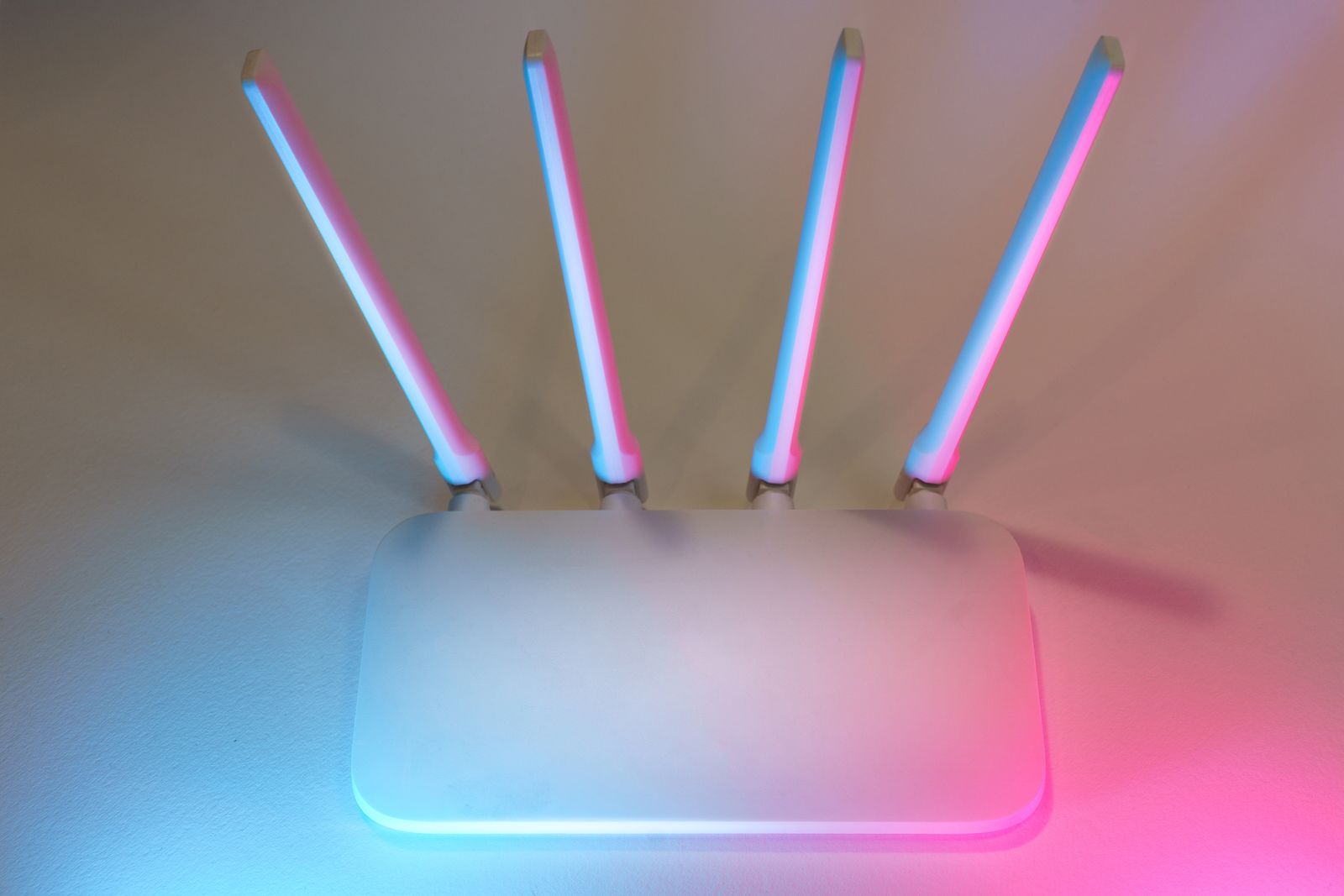
Wi-Fi 7 routers are on every shelf now, wrapped in promises of speeds your internet connection cannot deliver. So what actually changed, who genuinely benefits, and who is better off keeping their money? Here is the plain-English version — no engineering degree required.
Wi-Fi generations in 30 seconds
Each Wi-Fi generation is a new rulebook for how your devices talk to your router. Wi-Fi 6 (2019) focused on handling many devices at once in busy homes. Wi-Fi 6E added a whole new frequency band — 6 GHz — giving devices a wide, empty motorway alongside the crowded 2.4 GHz and 5 GHz roads. Wi-Fi 7, technically called 802.11be and certified from 2024, keeps all three bands and makes them work together in smarter ways. Your older devices still connect fine; Wi-Fi is backwards compatible, so a new router never orphans your old laptop.
What actually changed in Wi-Fi 7
Wider channels. Think of a channel as the width of a road. Wi-Fi 6E's widest road was 160 MHz; Wi-Fi 7 doubles it to 320 MHz in the 6 GHz band, letting roughly twice as much data through at once. This only matters at short range, because the 6 GHz band fades quickly through walls.
Multi-Link Operation (MLO). This is the genuinely new idea. Before Wi-Fi 7, your phone connected on one band at a time — if that band got congested, your video call stuttered until the phone switched. With MLO, a Wi-Fi 7 device can send and receive across two bands simultaneously, combining their capacity and hopping instantly if one gets busy. The result is not just more speed but lower, steadier delay — the thing gamers and video callers actually feel.
Denser data packing (4096-QAM). Wi-Fi 7 squeezes about 20% more data into each transmission than Wi-Fi 6E's 1024-QAM, provided you are close to the router with a clean signal.
Working around interference. Wi-Fi 7 can "puncture" around a noisy slice of a wide channel and keep using the rest, instead of abandoning the whole channel. In a block of flats with forty neighbouring networks, that resilience is real.
Add it up and the theoretical maximum speed jumps from 9.6 Gbps (Wi-Fi 6/6E) to roughly 46 Gbps. Hold on to the word "theoretical" — it assumes perfect conditions and many antennas, and no home internet plan comes close.
The catch: your internet plan is the bottleneck
Here is the number that decides everything. If your broadband plan is 100, 300 or even 500 Mbps, your router is not what limits your Netflix stream or downloads — your internet connection is. A Wi-Fi 7 router cannot make a 300 Mbps plan arrive faster. Where Wi-Fi 7 helps is inside your home: moving files between your own devices, streaming from a home server, gaming with minimal delay, or keeping twenty devices happy at once. Judge it as a home-network upgrade, not an internet upgrade.
Who should upgrade
Consider Wi-Fi 7 if your router is Wi-Fi 5 or older (the jump is dramatic), if you have a fast fibre plan — around gigabit speeds — and compatible new phones and laptops that can actually use it, or if you live in a dense apartment building where interference is a daily problem and the puncturing and MLO tricks earn their keep. Competitive gamers and households streaming high-bitrate video to several TVs at once also sit in the "yes" camp. If you are replacing a dying router anyway, buying Wi-Fi 7 is sensible future-proofing, since you will keep it for five-plus years while your other devices catch up.
Who should skip it (for now)
If your current router is Wi-Fi 6 or 6E, your plan is below roughly 500 Mbps, and nothing in your home feels broken, Wi-Fi 7 will change almost nothing you can notice. Most of your devices probably do not support it yet, and a feature your phone cannot use is not a feature. The same money spent on better router placement or a mesh system to kill a dead zone will improve your daily life far more.
Before you buy anything: three free fixes
First, move your router: central, raised, and out in the open beats any upgrade — Wi-Fi hates cupboards and floors. Second, update your router's firmware and reboot it; routers run for years without either. Third, if one room is the problem, a mesh Wi-Fi system or a single well-placed extender fixes coverage, which is what most "slow Wi-Fi" complaints actually are.
If you do buy: a short checklist
- Make sure it is Wi-Fi CERTIFIED 7, not a draft-spec bargain.
- Tri-band matters: you want the 6 GHz band included, or you are missing the point.
- Match the router to your home size; big homes need mesh kits, not one mighty box.
- Check that your key devices (phone, laptop) support Wi-Fi 7 — otherwise you are buying for your next devices, which is fine if you know it.
- Keep your old router's name and password: set the new network to the same name and password, and every device in the house reconnects without a tedious setup marathon.
The bottom line
Wi-Fi 7 is a real step forward — smarter, steadier, and much faster inside your home. But it upgrades your local network, not your internet plan. Upgrade if your router is old, your plan is fast, or your home is crowded with devices. Otherwise, place your current router well, keep its firmware fresh, and wait: by the time most of your devices speak Wi-Fi 7, the routers will be better and cheaper.
Sources: Wi-Fi Alliance — Wi-Fi CERTIFIED 7 programme overview (wi-fi.org), Cisco — "What Is Wi-Fi 7?" explainer: 320 MHz channels, Multi-Link Operation, 4096-QAM (cisco.com), HPE — "What is Wi-Fi 7?" glossary: comparison with Wi-Fi 6E, 802.11be features (hpe.com), Qualcomm and Intel Wi-Fi 7 product briefs on real-world client capabilities (qualcomm.com, intel.com)