
How to Back Up Your Phone and Computer: The 3-2-1 Rule Explained
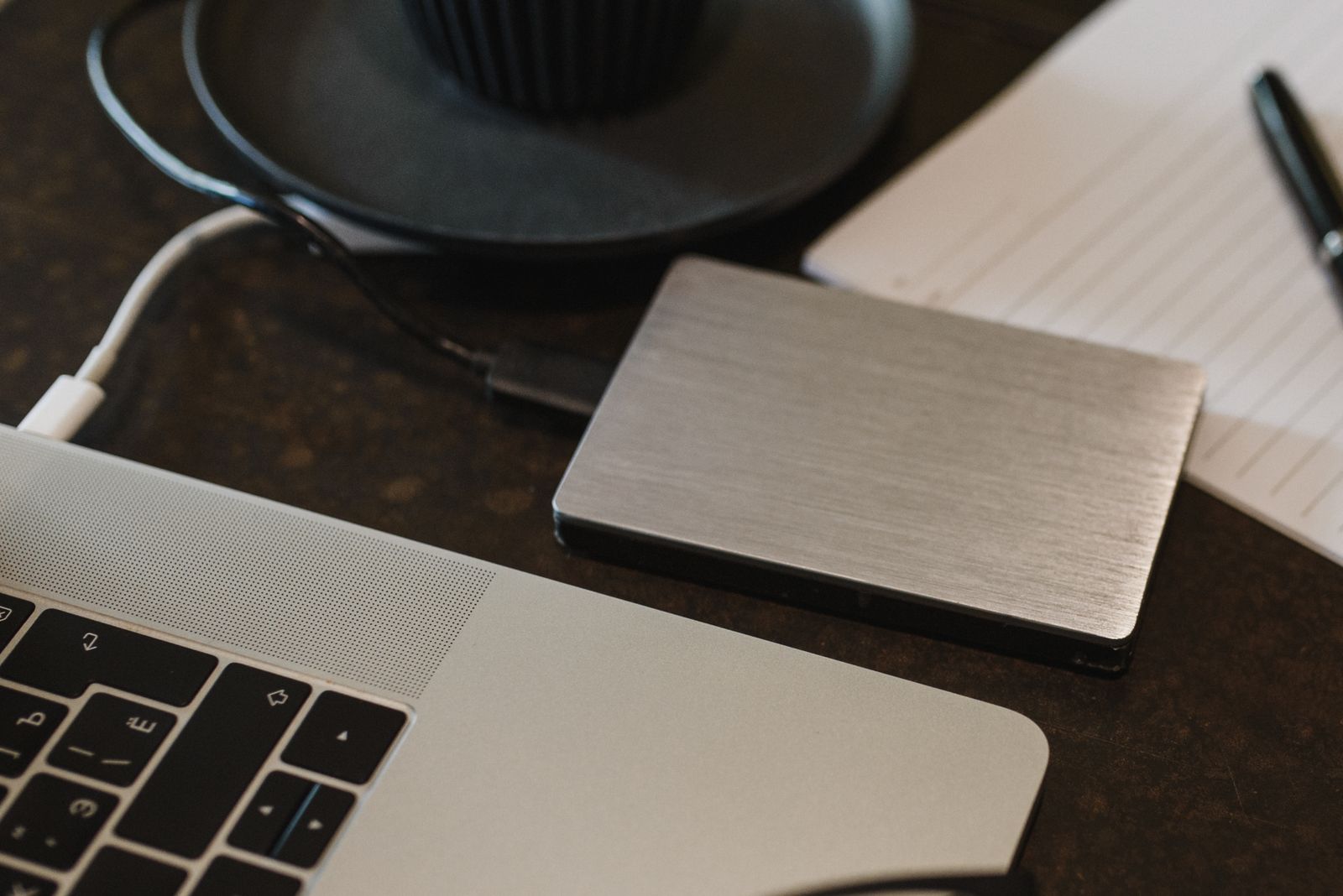
Ask anyone who has lost a phone or watched a laptop die: the device is replaceable, the photos and documents on it are not. Backups sound boring until the day they save you. The good news is that backup professionals have used one simple rule for decades, and setting it up at home takes less than an hour. It is called the 3-2-1 rule.
What the 3-2-1 rule means
Keep 3 copies of anything important: the original plus two backups. Store them on 2 different types of media — for example, your computer's drive and an external drive, so one kind of failure cannot take both. Keep 1 copy off-site, away from your home, so a fire, flood or burglary cannot destroy everything at once. In practice, the off-site copy is usually a cloud service, and the second media type is usually an external hard drive or SSD sitting in a drawer. That is the whole rule: three copies, two media, one elsewhere.
Why one backup is not a backup
A single external drive fails in all the same ways your computer does — it can break, get dropped, be stolen in the same bag, or die quietly in a drawer. And there is a modern threat that makes the off-site copy essential: ransomware. This malicious software encrypts everything it can reach, including any backup drive plugged into your computer at the time. Victims who had one connected backup often discover it was encrypted too. A cloud copy, or a drive you only plug in during backups and then disconnect, breaks that chain. Version history matters as well: good cloud services keep earlier versions of files, so an encrypted or corrupted file does not instantly overwrite your only good copy.
Backing up your phone
Your phone holds your photos, messages and two-factor codes, so start here.
On an iPhone, go to Settings, tap your name, then iCloud, then iCloud Backup, and make sure it is on. Your phone then backs up automatically when it is locked, charging and on Wi-Fi. The free iCloud tier is small, so most people eventually need a paid storage plan for full backups — or back up to a computer instead, which costs nothing.
On Android, open Settings and look for the backup option (on Pixel phones it is under System, then Backup; on Samsung phones, under your Samsung account and Google backup settings). Google's backup covers apps, settings, messages and call data, while Google Photos handles pictures and videos — check both are switched on.
Whichever phone you have, open the backup screen once and read the "last successful backup" date. If it is not recent, your safety net has a hole in it.
Backing up your computer
Computers need two layers to satisfy the rule: a local external drive for fast, complete restores, and a cloud copy for the off-site requirement.
On a Mac, the built-in tool is Time Machine. Plug in an external drive, and your Mac will offer to use it for backups; afterwards it quietly keeps hourly, daily and weekly versions of everything. On Windows, File History can back up your files to an external drive (find it in Settings under backup options), and the Windows Backup app can also save settings and folders to OneDrive. For the cloud layer, syncing your Documents, Desktop and Pictures folders through iCloud, Google Drive, OneDrive or Dropbox covers your most important files — though note that syncing mirrors deletions, which is why the local versioned backup (Time Machine or File History) is the other half of the pair.
Buy an external drive at least twice the size of your computer's storage, and get into the habit of leaving it plugged in (for automatic local backups) only if your cloud layer is solid — otherwise, plug it in for a weekly backup session and store it disconnected the rest of the time, safe from ransomware and power surges alike.
The step everyone skips: test your backups
A backup you have never tested is a hope, not a backup. Once, after setting everything up, pick a few files — an old photo, a document — and actually restore them from your external drive and from the cloud. It takes five minutes and proves the whole chain works. Repeat the test whenever you change services or get a new computer.
Your monthly backup checklist
- Check the "last backup" date on your phone — it should be within the last day or two.
- Confirm your computer's local backup ran this week (Time Machine or File History status).
- Plug in your disconnected backup drive, run a backup, and put it back in its safe place.
- Glance at your cloud storage: is it nearly full? A backup that silently stopped for lack of space is a common failure.
- Restore one random file from a backup to prove it works.
- Make sure photos from any new device (a partner's phone, a new tablet) are included somewhere.
- Check that important folders added this month are inside your backed-up locations.
Start small, start today
Do not let perfect be the enemy of done. If the full system feels like a lot, begin with the single highest-value step: turn on automatic cloud backup on your phone tonight. Add the external drive this weekend. Within a week you will have gone from "everything exists in exactly one fragile place" to a setup that can shrug off a lost phone, a dead drive, or a very bad day.
Sources: Apple Support — "Back up your iPhone with iCloud" and "Back up your Mac with Time Machine" (support.apple.com), Google Support — "Back up or restore data on your Android device" (support.google.com), Microsoft Support — File History and Windows Backup guidance (support.microsoft.com), Backblaze — "The 3-2-1 Backup Strategy" explainer (backblaze.com)